Add an AI chatbot to your WordPress site
You add a Sitepilot chatbot to WordPress by pasting one script tag into a Custom HTML block or a footer-code plugin. No plugin is needed. In our test on a fresh WordPress site, with a bot already trained, the chat bubble was live in about 4 minutes. The free plan gives you 100 messages a month, with no card.
The free plan has 100 messages a month and 2 chatbots, with no card. The widget shows a small "Powered by Sitepilot" badge.
Start free, no card neededHow to add it
1. Get your script tag
Make a free account, train a bot on your site, and copy the script tag from your dashboard. It looks like this, with your own bot id.
<script src="https://sitepilot.shop/widget.js" data-bot="YOUR_BOT_ID"></script>2. Option 1: a Custom HTML block on one page
This needs no plugin. The chat bubble shows only on the pages where you add the block.
- In WordPress admin, open Pages, then Add New (or edit an existing page).
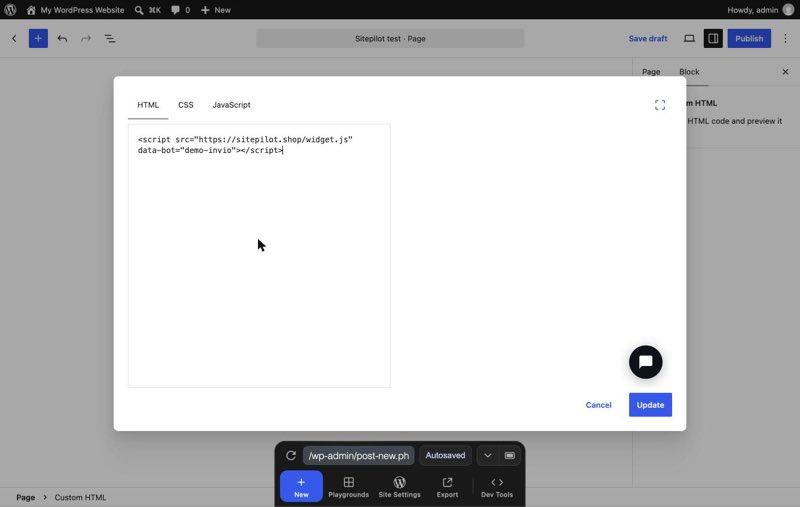
- Add a Custom HTML block. Type /custom html and press Enter.
- Click inside the HTML box, paste your script tag, then click Update.
- Publish or update the page.
- Open the page in a private window. The bubble sits at the bottom right. Click it and ask a question.
3. Option 2: a footer-code plugin on every page
Use this if you want the bubble on the whole site. We tested WPCode Lite, a free plugin from the WordPress.org directory.
- Open Plugins, then Add New. Search for WPCode, then click Install Now and Activate.
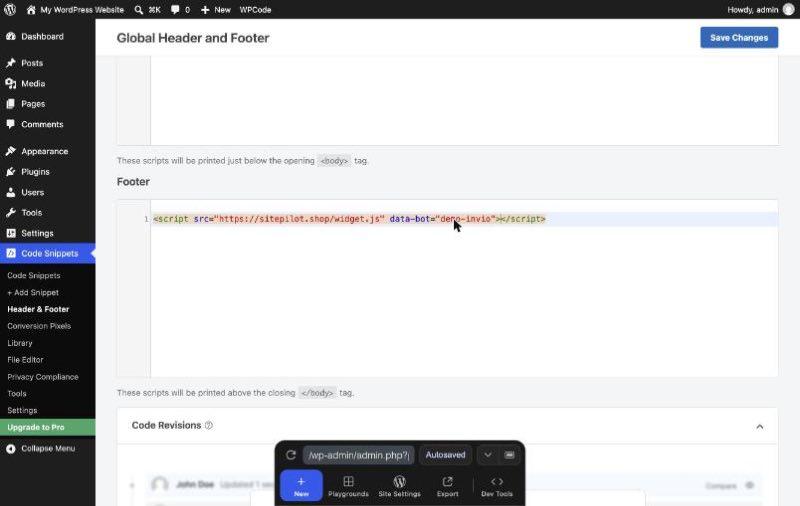
- Open Code Snippets, then Header & Footer. Scroll to the Footer box.
- Paste your script tag into the Footer box. Check that the box shows one opening tag and one closing tag. When we typed the tag by hand, the editor added a second closing tag. Pasting avoided it.
- Click Save Changes.
- Open any page on your site in a private window and look for the bubble.
What you should see
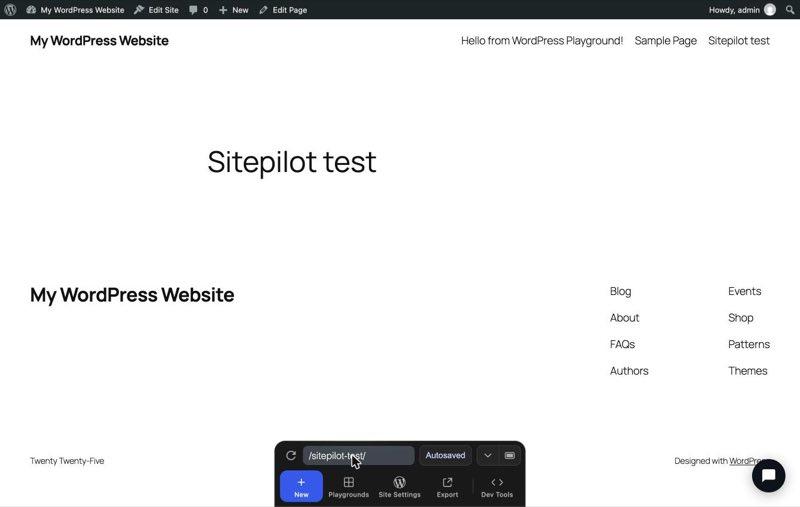
A round chat bubble at the bottom right of the page. Click it and ask a question about your site.
What to know
- The bubble loads from our script. A security plugin or a Content-Security-Policy that blocks outside scripts will hide it. We have not tested either, so this comes from how script blocking works, not from our run.
- A caching plugin may keep serving the old page. If the bubble does not show after you save, clear the cache and check again.
- The bot reads your public pages. It downloads the page address you give it and up to 10 pages on the same site that it links to.
- Retrain the bot after you change your pages. It answers from what it read when you trained it.
What we tested
Tested 2026-11-08 on WordPress 7.1.4 in WordPress Playground.
We ran it twice in the browser: once with a Custom HTML block on a page, once with the WPCode Lite 2.4.1 footer box. Both times the chat bubble appeared and our demo bot answered a question. An AI drove the test, so you may need more or less time than we did. We have not timed a person.
Not tested: WooCommerce, page builders, multisite, other hosts, WordPress.com, other footer-code plugins, security plugins, caching plugins, editing a theme file, and training a bot of your own (we used our demo bot).
Questions
Does it need a plugin?
No. The widget is one script tag. You can paste it into a Custom HTML block on a page, or into a footer-code plugin if you want it on every page. We do not have a Sitepilot plugin for WordPress.
Does it slow my site?
We have not measured it, so we make no claim. The widget loads from our server as one script. Check your own site with a speed test before and after you add it.
What happens after 100 messages?
The bot stops answering until the next calendar month, or until you upgrade. Visitors then see a generic error message in the chat window rather than an answer. Only the bot's replies count, across all your chatbots.
Where is my data stored?
Your pages are stored as embeddings scoped to your bot, used only to answer questions on your site. Never used to train models. Deleted on request. Visitor questions and the bot's answers are saved to your account, and each question is sent to an AI model hosted on Microsoft Azure to write the reply.
Read the privacy policyTry it on your site
Make a free account, train a bot on your pages, and come back here for the paste steps.
Start free, no card needed